
Splunk
Install
Whether on-prem, hybrid or multicloud, Splunk delivers real-time monitoring and troubleshooting to help you visualize and analyze performance in seconds and with greater accuracy.
Monitoring
Search logs
Search logs
search:read
search:read
Executes SPL queries.
Executes SPL queries.
Get search results
Get search results
search:read
search:read
Retrieves query results.
Retrieves query results.
List alerts
List alerts
alerts:read
alerts:read
Gets configured alerts.
Gets configured alerts.
Create alert
Create alert
alerts:write
alerts:write
Creates new alert rules.
Creates new alert rules.
List saved searches
List saved searches
searches:read
searches:read
Retrieves saved reports.
Retrieves saved reports.
Install anywhere you work
Install anywhere you work

Claude desktop
Claude code (CLI)

ChatGPT

Cursor
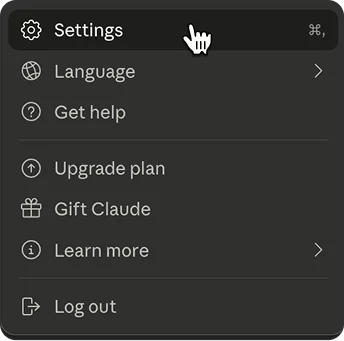
1. Open Claude Desktop settings by clicking on your profile icon and select ‘Settings’
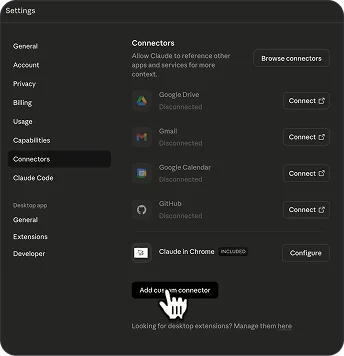
2. Navigate to Connectors and click on ‘Add custom connector’
3. Copy the MCP URL
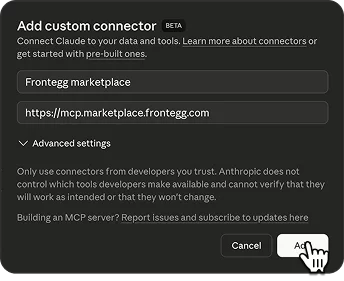
4. Enter the name, paste URL and click on ‘Add’
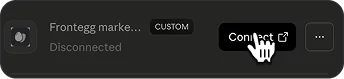
5. Click on ‘Connect’
6. Login and start using in Claude desktop
Claude desktop
Claude code (CLI)
ChatGPT
Cursor
1. Open Claude Desktop settings by clicking on your profile icon and select ‘Settings’
2. Navigate to Connectors and click on ‘Add custom connector’
3. Copy the MCP URL
4. Enter the name, paste URL and click on ‘Add’
5. Click on ‘Connect’
6. Login and start using in Claude desktop
Empower your workforce with secure agents

© 2026 Agen™ | All rights reserved.
Deploy anywhere
Empower your workforce with secure agents
© 2026 Agen™ | All rights reserved.
Deploy anywhere
Empower your workforce with secure agents
© 2026 Agen™ | All rights reserved.
Deploy anywhere
Claude desktop
1. Open Claude Desktop settings by clicking on your profile icon and select ‘Settings’
2. Navigate to Connectors and click on ‘Add custom connector’
3. Copy the MCP URL
4. Enter the name, paste URL and click on ‘Add’
5. Click on ‘Connect’
6. Login and start using in Claude desktop
Claude code (CLI)
1. Copy the command below and run it using your terminal
2. MCP is successfully added’
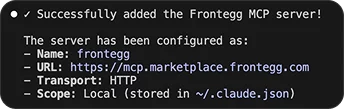
3. Start using in Claude code
ChatGPT
1. Open ChatGPT settings by clicking on your profile icon and select ‘Settings’
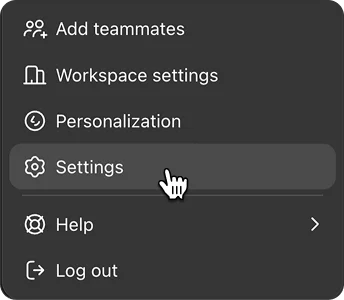
2. Navigate to Apps and click on ‘Advanced settings’
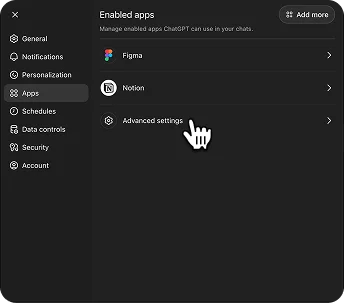
3. Enable developer mode
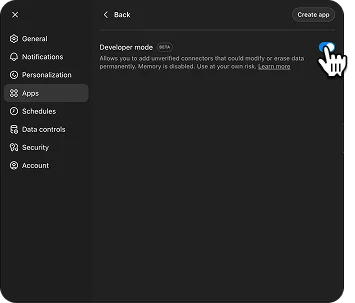
4. Copy the MCP URL
5. Go back to Apps and Click on ‘Create app’
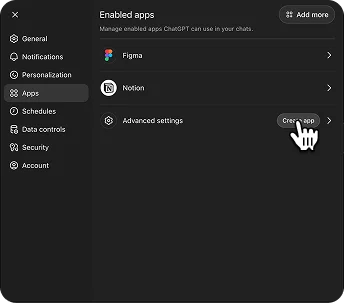
6. Enter MCP server URL and click ‘Create’
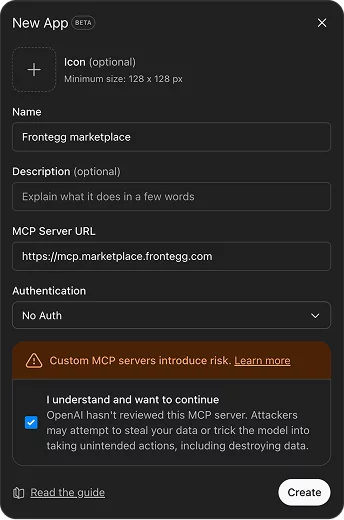
7. Login and start using in ChatGPT
Cursor
1. Click on ‘Add to cursor’
Add to Cursor
3. Click on ‘Connect’
4. Authenticate and start using is Cursor chat
Claude desktop
1. Open Claude Desktop settings by clicking on your profile icon and select ‘Settings’
2. Navigate to Connectors and click on ‘Add custom connector’
3. Copy the MCP URL
4. Enter the name, paste URL and click on ‘Add’
5. Click on ‘Connect’
6. Login and start using in Claude desktop
Claude code (CLI)
1. Copy the command below and run it using your terminal
2. MCP is successfully added’
3. Start using in Claude code
ChatGPT
1. Open ChatGPT settings by clicking on your profile icon and select ‘Settings’
2. Navigate to Apps and click on ‘Advanced settings’
3. Enable developer mode
4. Copy the MCP URL
5. Go back to Apps and Click on ‘Create app’
6. Enter MCP server URL and click ‘Create’
7. Login and start using in ChatGPT
Cursor
1. Click on ‘Add to cursor’
Add to Cursor
3. Click on ‘Connect’
4. Authenticate and start using is Cursor chat