
Linear
Install
Issue tracking, project management, roadmap planning, and modern development workflow automation.
Project Management
List issues
List issues
issues:read
issues:read
Retrieves issues with filters for status and assignee.
Retrieves issues with filters for status and assignee.
Create issue
Create issue
issues:write
issues:write
Creates new issues with title; description; and priority.
Creates new issues with title; description; and priority.
Update issue
Update issue
issues:write
issues:write
Modifies issue properties and state.
Modifies issue properties and state.
Get issue
Get issue
issues:read
issues:read
Fetches detailed issue information including comments.
Fetches detailed issue information including comments.
List projects
List projects
projects:read
projects:read
Retrieves projects and their status.
Retrieves projects and their status.
List cycles
List cycles
cycles:read
cycles:read
Gets sprint cycles for planning.
Gets sprint cycles for planning.
Add comment
Add comment
comments:write
comments:write
Adds comments to issues for discussion.
Adds comments to issues for discussion.
Install anywhere you work
Install anywhere you work

Claude desktop
Claude code (CLI)

ChatGPT

Cursor
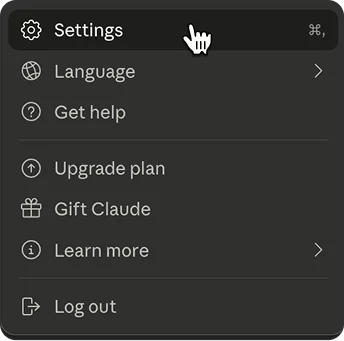
1. Open Claude Desktop settings by clicking on your profile icon and select ‘Settings’
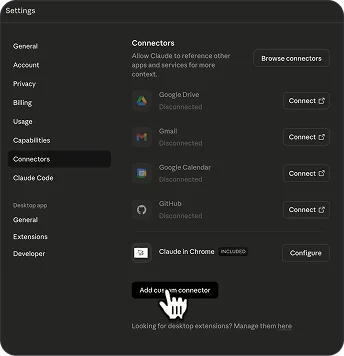
2. Navigate to Connectors and click on ‘Add custom connector’
3. Copy the MCP URL
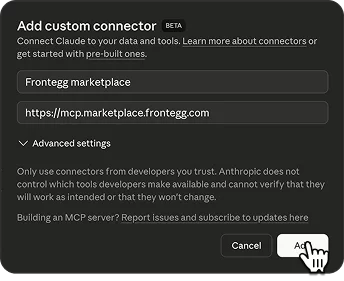
4. Enter the name, paste URL and click on ‘Add’
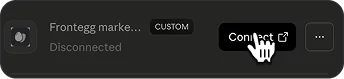
5. Click on ‘Connect’
6. Login and start using in Claude desktop
Claude desktop
Claude code (CLI)
ChatGPT
Cursor
1. Open Claude Desktop settings by clicking on your profile icon and select ‘Settings’
2. Navigate to Connectors and click on ‘Add custom connector’
3. Copy the MCP URL
4. Enter the name, paste URL and click on ‘Add’
5. Click on ‘Connect’
6. Login and start using in Claude desktop
Empower your workforce with secure agents

© 2026 Agen™ | All rights reserved.
Deploy anywhere
Empower your workforce with secure agents
© 2026 Agen™ | All rights reserved.
Deploy anywhere
Empower your workforce with secure agents
© 2026 Agen™ | All rights reserved.
Deploy anywhere
Claude desktop
1. Open Claude Desktop settings by clicking on your profile icon and select ‘Settings’
2. Navigate to Connectors and click on ‘Add custom connector’
3. Copy the MCP URL
4. Enter the name, paste URL and click on ‘Add’
5. Click on ‘Connect’
6. Login and start using in Claude desktop
Claude code (CLI)
1. Copy the command below and run it using your terminal
2. MCP is successfully added’
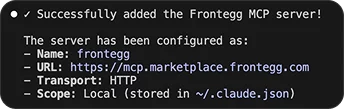
3. Start using in Claude code
ChatGPT
1. Open ChatGPT settings by clicking on your profile icon and select ‘Settings’
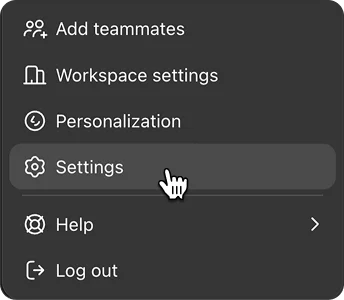
2. Navigate to Apps and click on ‘Advanced settings’
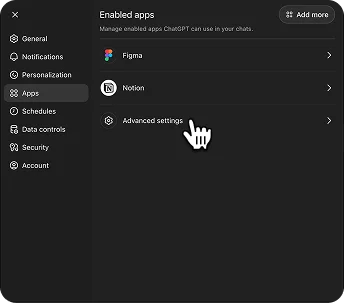
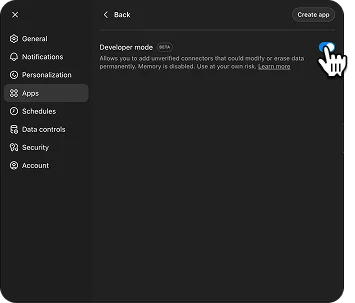
3. Enable developer mode
4. Copy the MCP URL
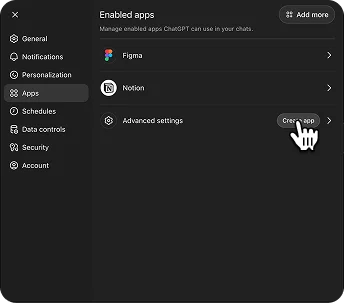
5. Go back to Apps and Click on ‘Create app’
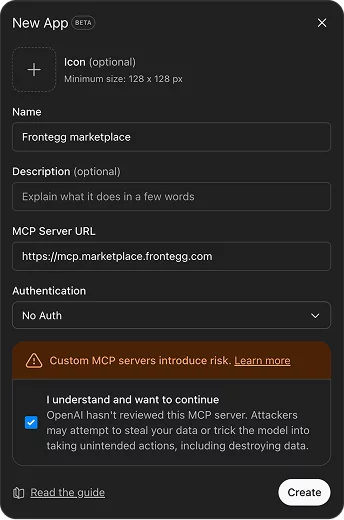
6. Enter MCP server URL and click ‘Create’
7. Login and start using in ChatGPT
Cursor
1. Click on ‘Add to cursor’
Add to Cursor
3. Click on ‘Connect’
4. Authenticate and start using is Cursor chat
Claude desktop
1. Open Claude Desktop settings by clicking on your profile icon and select ‘Settings’
2. Navigate to Connectors and click on ‘Add custom connector’
3. Copy the MCP URL
4. Enter the name, paste URL and click on ‘Add’
5. Click on ‘Connect’
6. Login and start using in Claude desktop
Claude code (CLI)
1. Copy the command below and run it using your terminal
2. MCP is successfully added’
3. Start using in Claude code
ChatGPT
1. Open ChatGPT settings by clicking on your profile icon and select ‘Settings’
2. Navigate to Apps and click on ‘Advanced settings’
3. Enable developer mode
4. Copy the MCP URL
5. Go back to Apps and Click on ‘Create app’
6. Enter MCP server URL and click ‘Create’
7. Login and start using in ChatGPT
Cursor
1. Click on ‘Add to cursor’
Add to Cursor
3. Click on ‘Connect’
4. Authenticate and start using is Cursor chat