
Auth0
Install
Authentication automation, user management, identity orchestration, and access control workflows.
Identity
List users
List users
users:read
users:read
Retrieves user database.
Retrieves user database.
Get user
Get user
users:read
users:read
Fetches user profile and metadata.
Fetches user profile and metadata.
Create user
Create user
users:write
users:write
Creates new user accounts.
Creates new user accounts.
Update user
Update user
users:write
users:write
Modifies user properties.
Modifies user properties.
Delete user
Delete user
users:write
users:write
Removes user accounts.
Removes user accounts.
List roles
List roles
roles:read
roles:read
Retrieves available roles.
Retrieves available roles.
Assign role
Assign role
roles:write
roles:write
Assigns roles to users.
Assigns roles to users.
Install anywhere you work
Install anywhere you work

Claude desktop
Claude code (CLI)

ChatGPT

Cursor
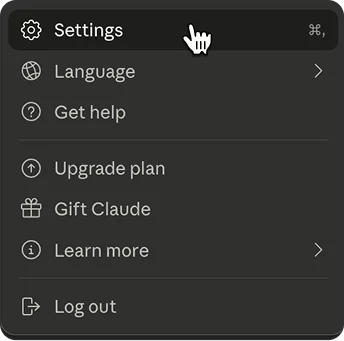
1. Open Claude Desktop settings by clicking on your profile icon and select ‘Settings’
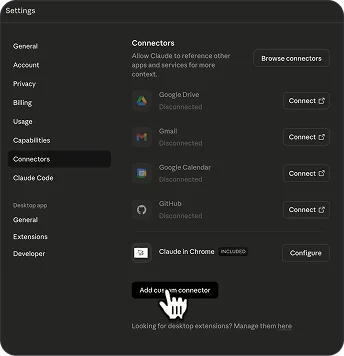
2. Navigate to Connectors and click on ‘Add custom connector’
3. Copy the MCP URL
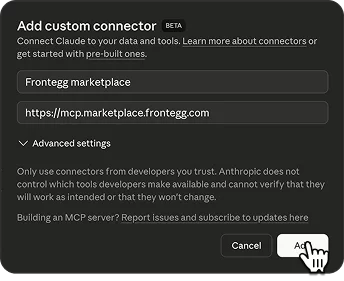
4. Enter the name, paste URL and click on ‘Add’
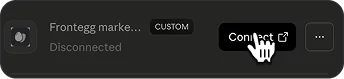
5. Click on ‘Connect’
6. Login and start using in Claude desktop
Claude desktop
Claude code (CLI)
ChatGPT
Cursor
1. Open Claude Desktop settings by clicking on your profile icon and select ‘Settings’
2. Navigate to Connectors and click on ‘Add custom connector’
3. Copy the MCP URL
4. Enter the name, paste URL and click on ‘Add’
5. Click on ‘Connect’
6. Login and start using in Claude desktop
Empower your workforce with secure agents

© 2026 Agen™ | All rights reserved.
Deploy anywhere
Empower your workforce with secure agents
© 2026 Agen™ | All rights reserved.
Deploy anywhere
Empower your workforce with secure agents
© 2026 Agen™ | All rights reserved.
Deploy anywhere
Claude desktop
1. Open Claude Desktop settings by clicking on your profile icon and select ‘Settings’
2. Navigate to Connectors and click on ‘Add custom connector’
3. Copy the MCP URL
4. Enter the name, paste URL and click on ‘Add’
5. Click on ‘Connect’
6. Login and start using in Claude desktop
Claude code (CLI)
1. Copy the command below and run it using your terminal
2. MCP is successfully added’
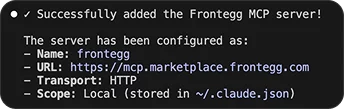
3. Start using in Claude code
ChatGPT
1. Open ChatGPT settings by clicking on your profile icon and select ‘Settings’
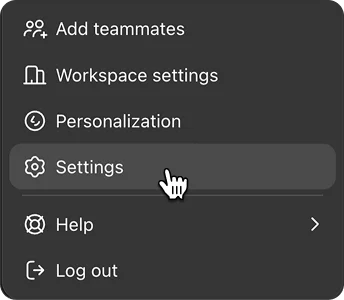
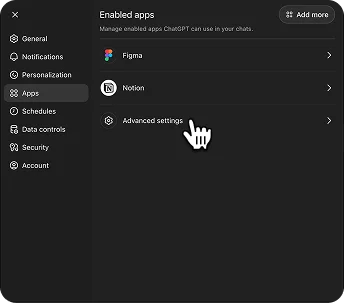
2. Navigate to Apps and click on ‘Advanced settings’
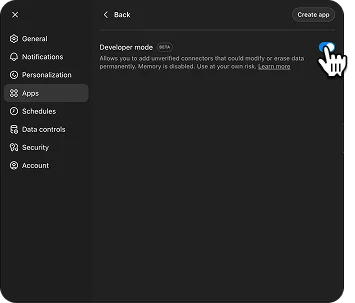
3. Enable developer mode
4. Copy the MCP URL
5. Go back to Apps and Click on ‘Create app’
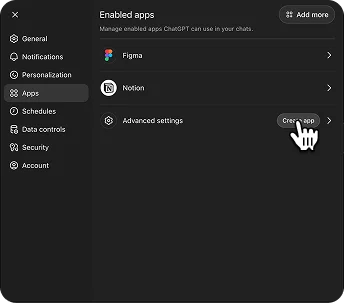
6. Enter MCP server URL and click ‘Create’
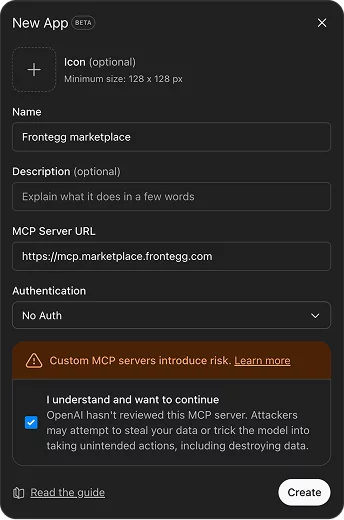
7. Login and start using in ChatGPT
Cursor
1. Click on ‘Add to cursor’
Add to Cursor
3. Click on ‘Connect’
4. Authenticate and start using is Cursor chat
Claude desktop
1. Open Claude Desktop settings by clicking on your profile icon and select ‘Settings’
2. Navigate to Connectors and click on ‘Add custom connector’
3. Copy the MCP URL
4. Enter the name, paste URL and click on ‘Add’
5. Click on ‘Connect’
6. Login and start using in Claude desktop
Claude code (CLI)
1. Copy the command below and run it using your terminal
2. MCP is successfully added’
3. Start using in Claude code
ChatGPT
1. Open ChatGPT settings by clicking on your profile icon and select ‘Settings’
2. Navigate to Apps and click on ‘Advanced settings’
3. Enable developer mode
4. Copy the MCP URL
5. Go back to Apps and Click on ‘Create app’
6. Enter MCP server URL and click ‘Create’
7. Login and start using in ChatGPT
Cursor
1. Click on ‘Add to cursor’
Add to Cursor
3. Click on ‘Connect’
4. Authenticate and start using is Cursor chat